Making Data from Text/Addresses
In this exercise you will learn the basic steps of geocoding, and how to execute them in QGIS.
Geocoding refers to methods of assigning geographic information to textual references to place, such as addresses or place names. This process involves matching textual data to reference data that contains geographic information.
The primary reference data you will typically use today comes from large scale mapping projects like Open Street Maps or Google Maps that have amassed large datasets of named spatial features. You may also encounter projects or examples where reference data had to be constructed or takes another form such as when working with historic information.
In this exercise you will geocode point locations of permits for work on cellular antennas in NYC using the Nominatim API. This is an open-source geocoding API which allows you to query the data collected and maintained by Open Street Map. You will use QGIS to access this service and as such you should be familiar with the usage policy.
Data downloads
- Please download NYC Department of Buildings (DOB) records for requests to perform work on cellular antennas from NYC Open Data here.
- You may also want to download the metadata for this dataset which is contained in the attached excel file
Exercise
Adding data
Open a new QGIS project.
Add the antenna permits dataset to your project with Layer>Add Layer>Add Delimited Text Layer. For the geometry definition select No Geometry (Attribute Table Only).
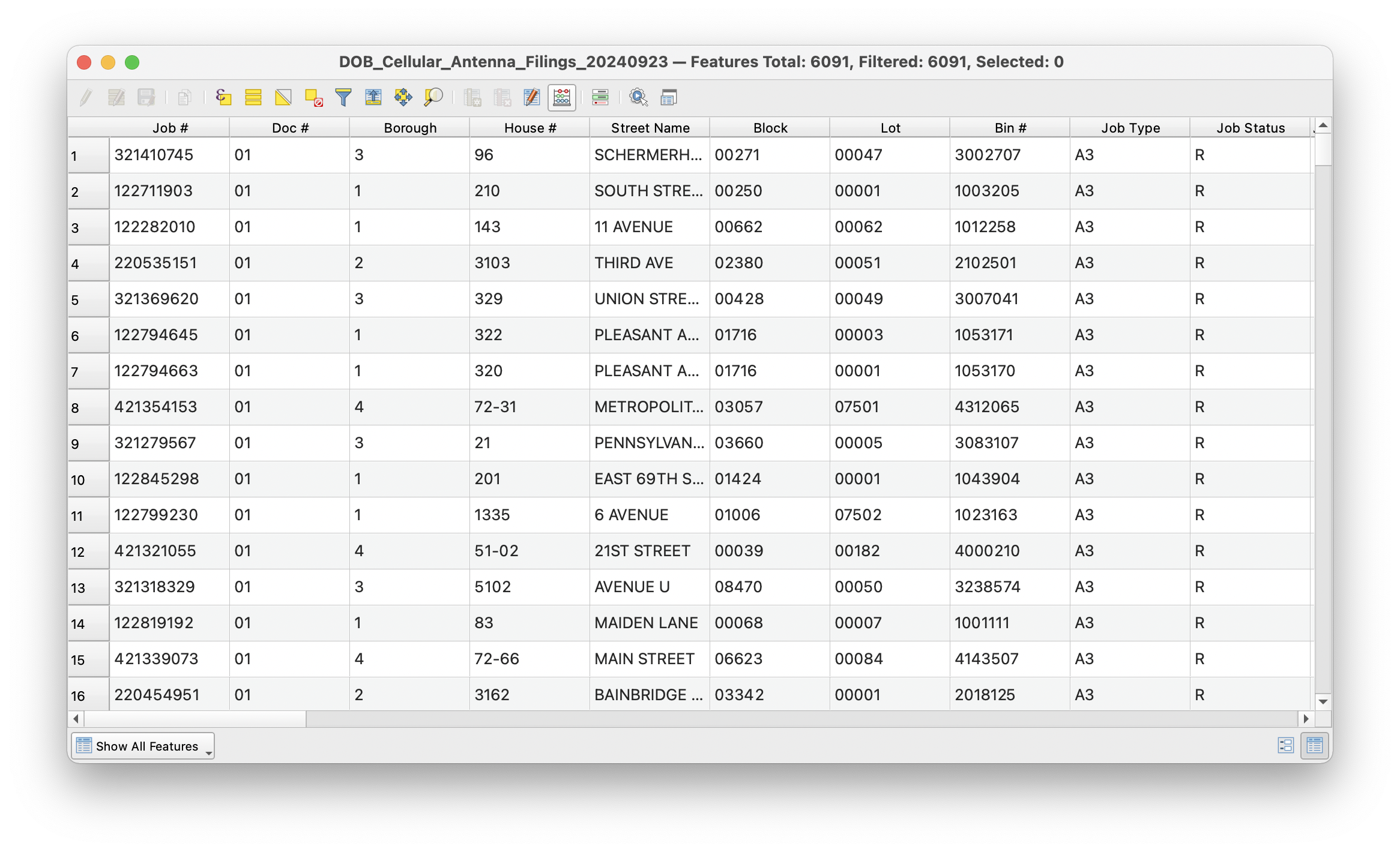
Once you have added this dataset take a look at the attribute table. Notice that there are several fields related to the address for each cellular antenna location but no coordinates corresponding to those addresses.
Constructing an address field
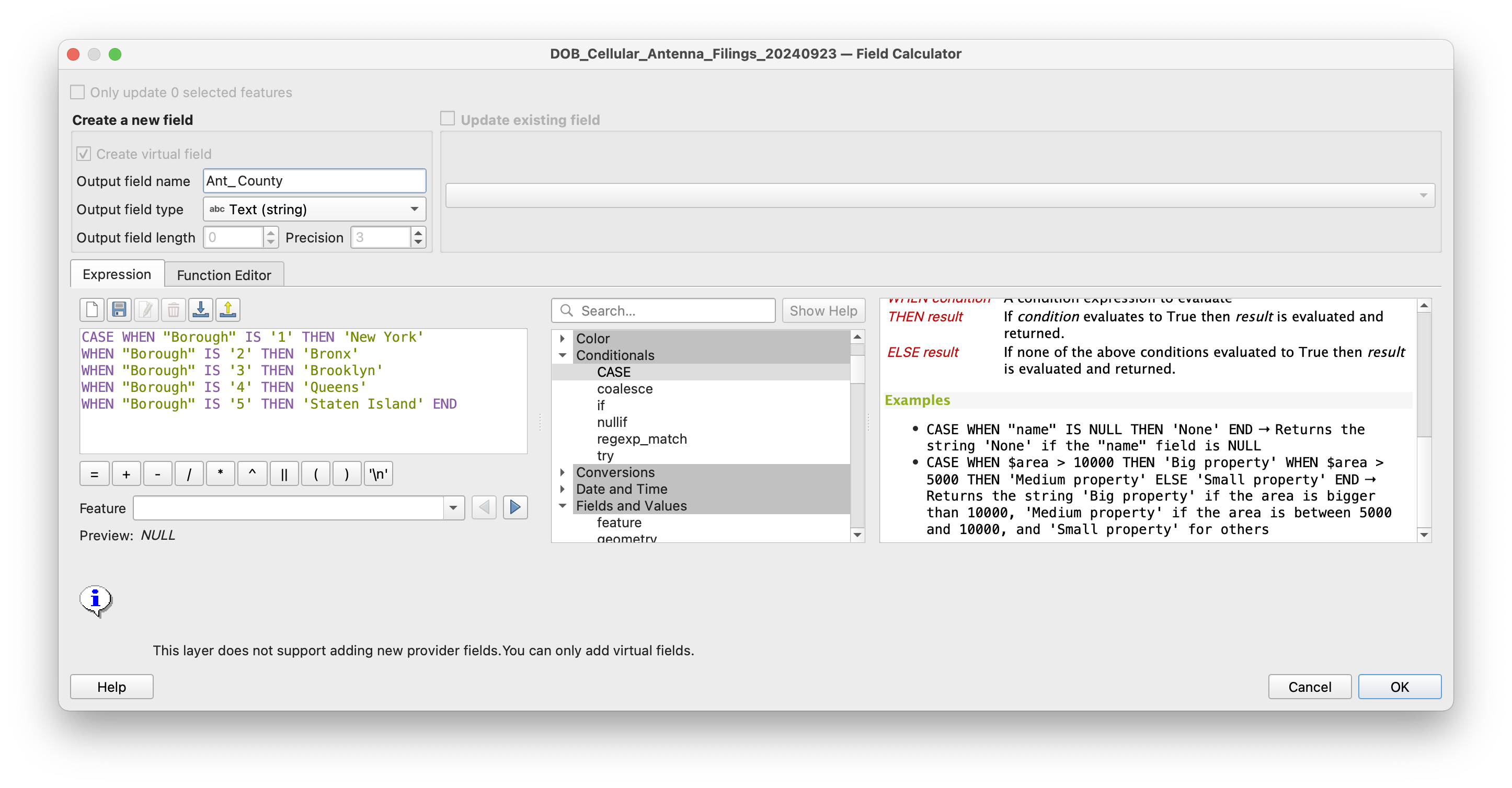
There is a field containing a numeric value for each borough (aka county) that the antenna is located in. In order to have a correctly formatted address to geocode we must create a new text field that has the borough name corresponding to each numeric value.
Use the Field Calculator (icon looks like an abacus) to create a new field with county names that correspond to each borough code.
Note: the metadata for this antenna permits dataset contains a data dictionary for the borough codes.
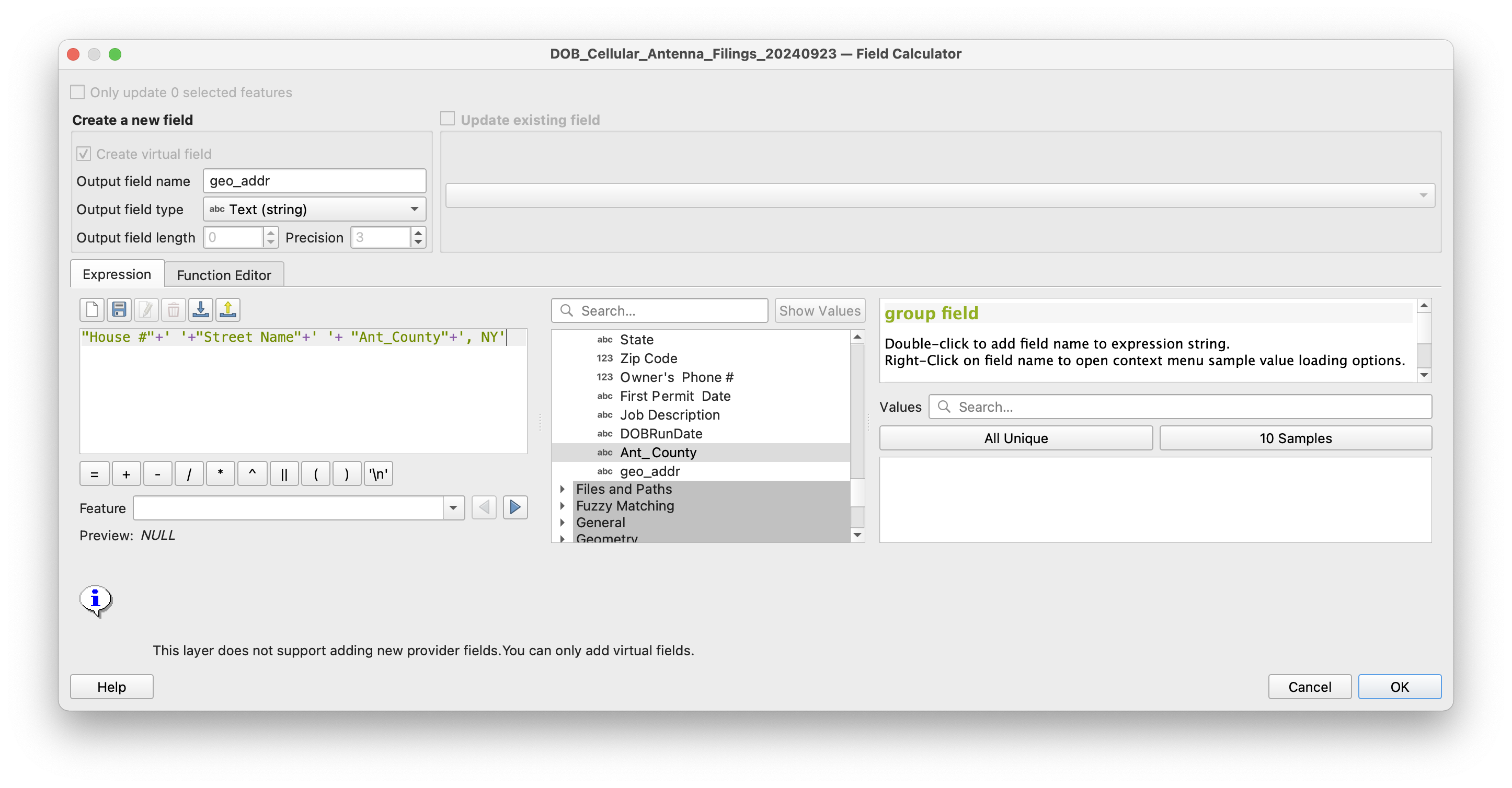
The geocoding tool requires that you provide it a single field with a complete address for each record in the dataset. We will concatenate the fields that each contain a part of the antenna address into a single address field. Again use the Field Calculator to create a new field.
Geocoding
Prior to geocoding our data using the newly created address field we will filter the full dataset of over 6,000 records to reduce the number of requests we send to the Nominatim API (speeding up processing times and reducing the strain on Nominatim's resources of this brief tutorial).
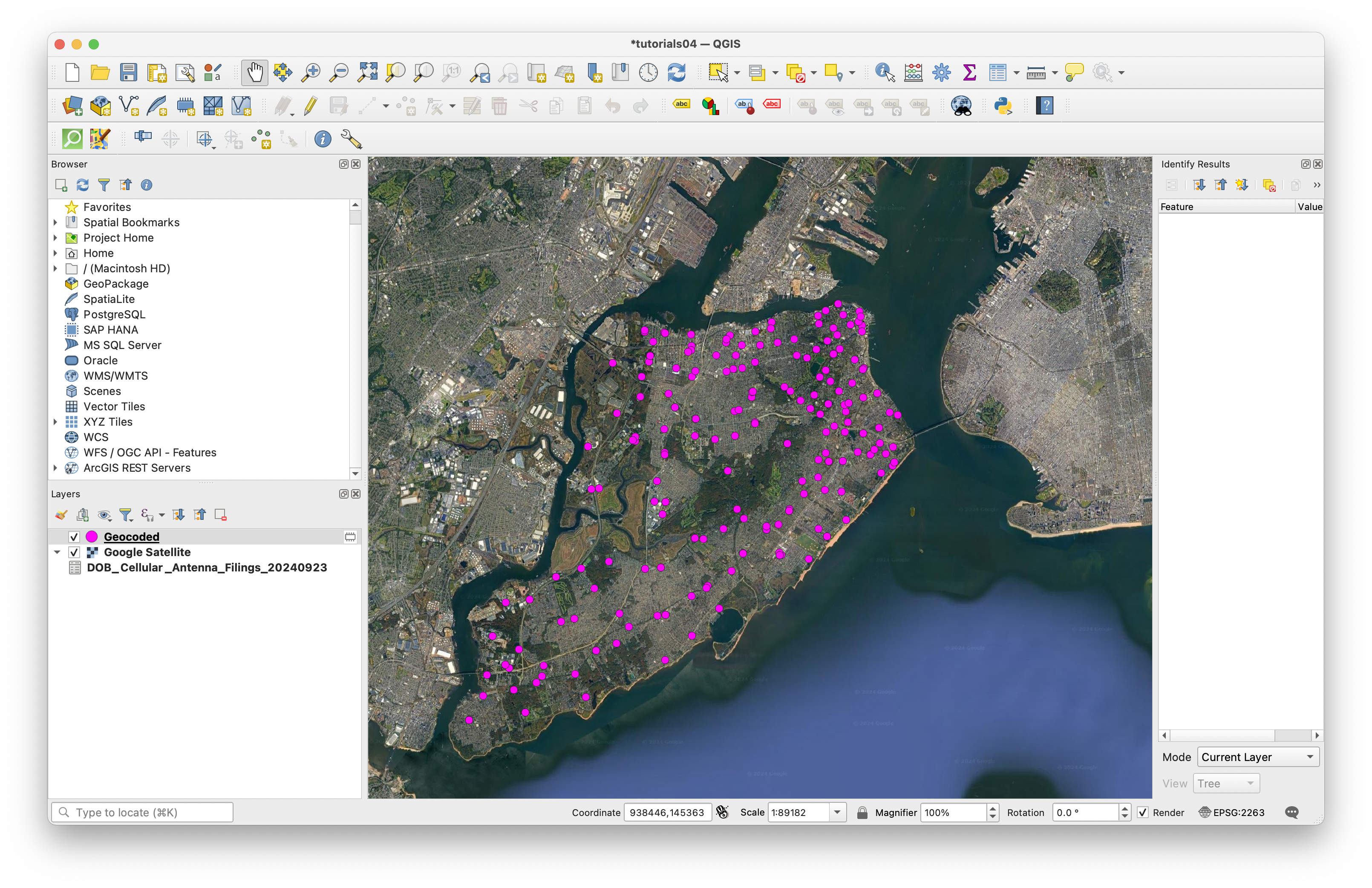
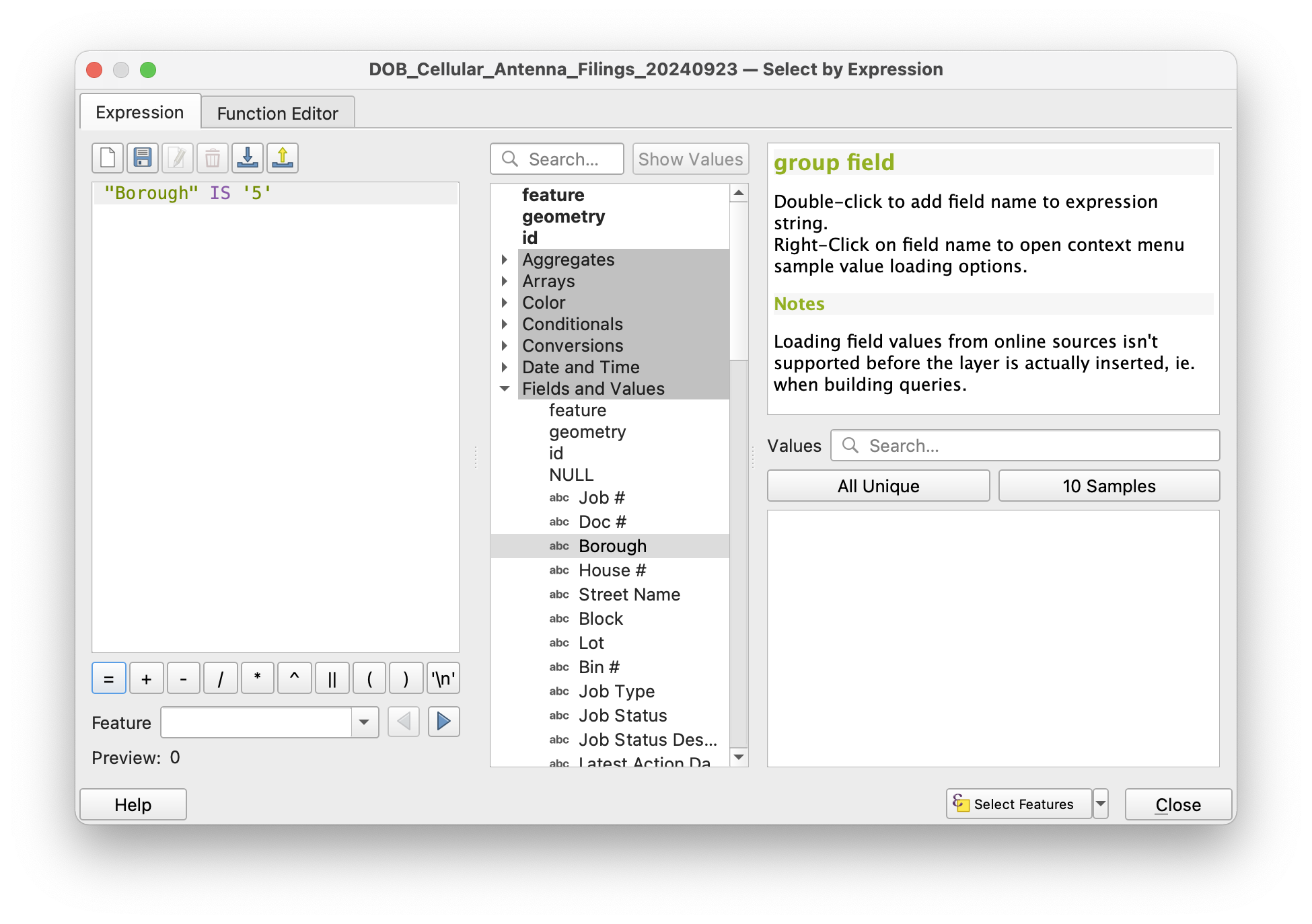
Using the select by expression tool select some subset of antennas in NYC. The example below shows a selection for all of the antennas in Staten Island.
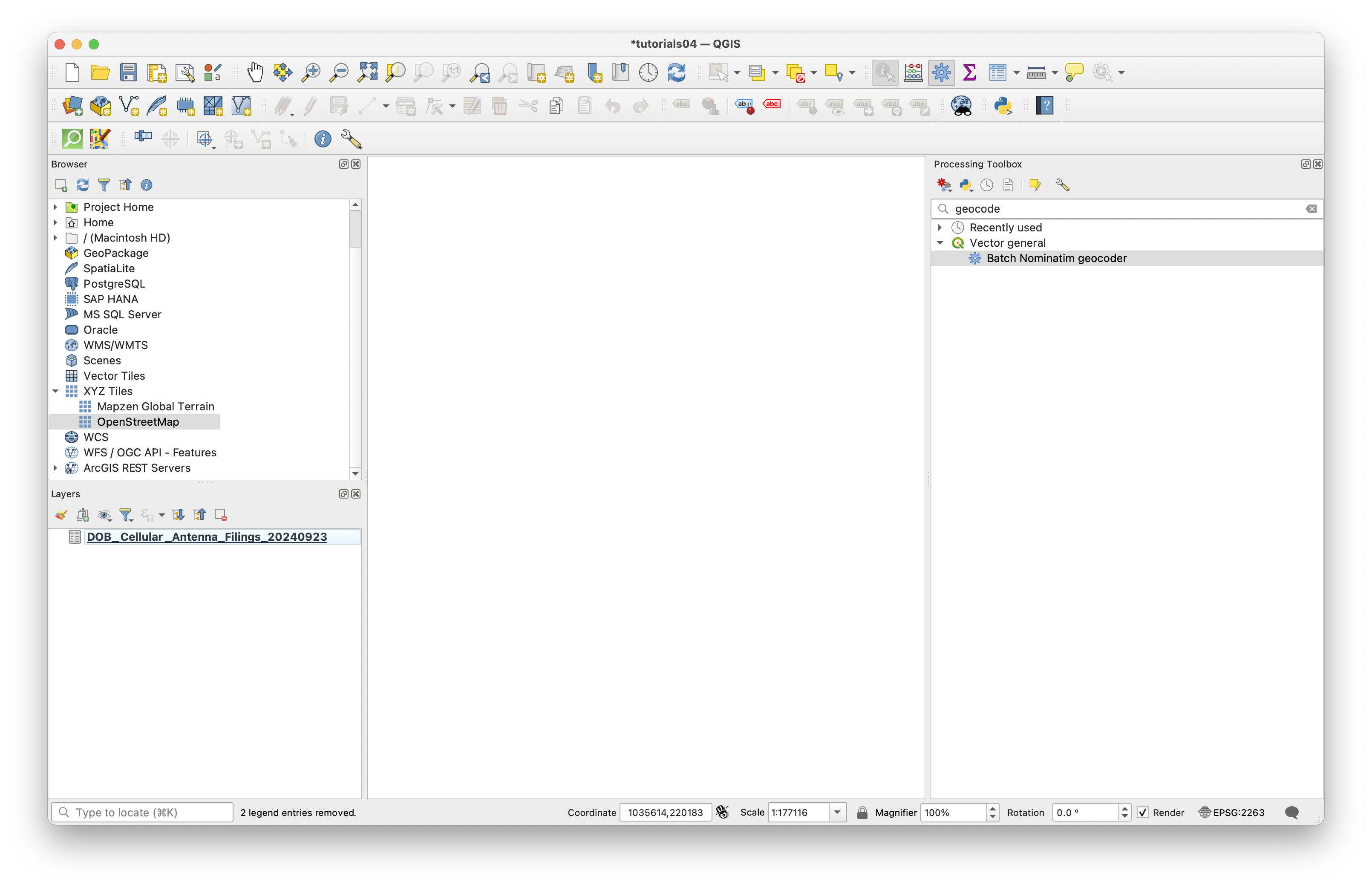
Next find Batch Nominatim geocoder tool by searching for it in the Processing Toolbox.
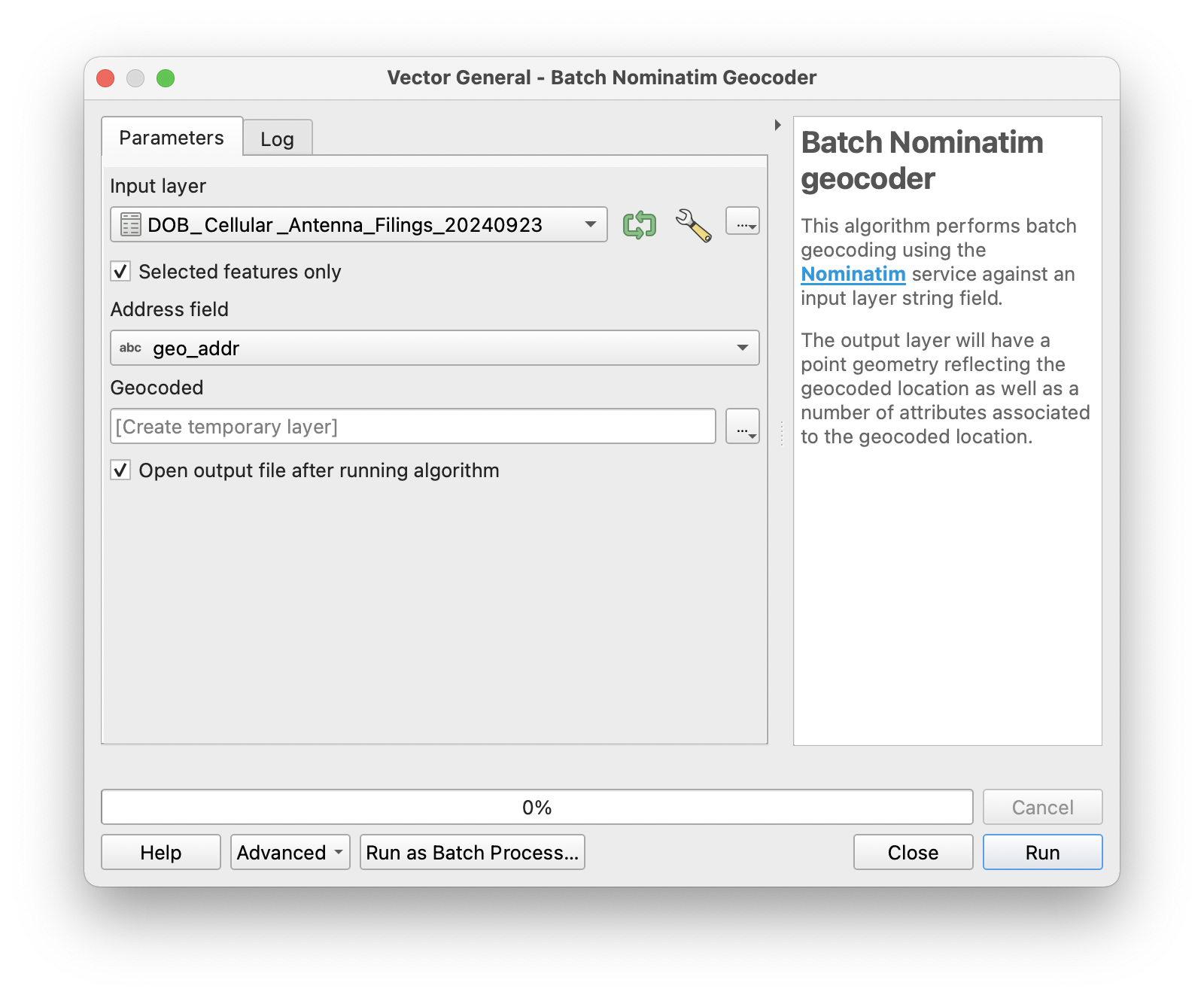
Open Batch Nominatim geocoder and follow the prompts to select the parameters you want to use in querying this API. Make sure to check the box next to Selected features only and then specify the field containing addrses information.
Note: when doing this on your own it is a good practice to select a handful of features to geocode as a test before running a query on a large number of addresses.
You may create a temporary layer rather than initially saving to file. Then select Run.
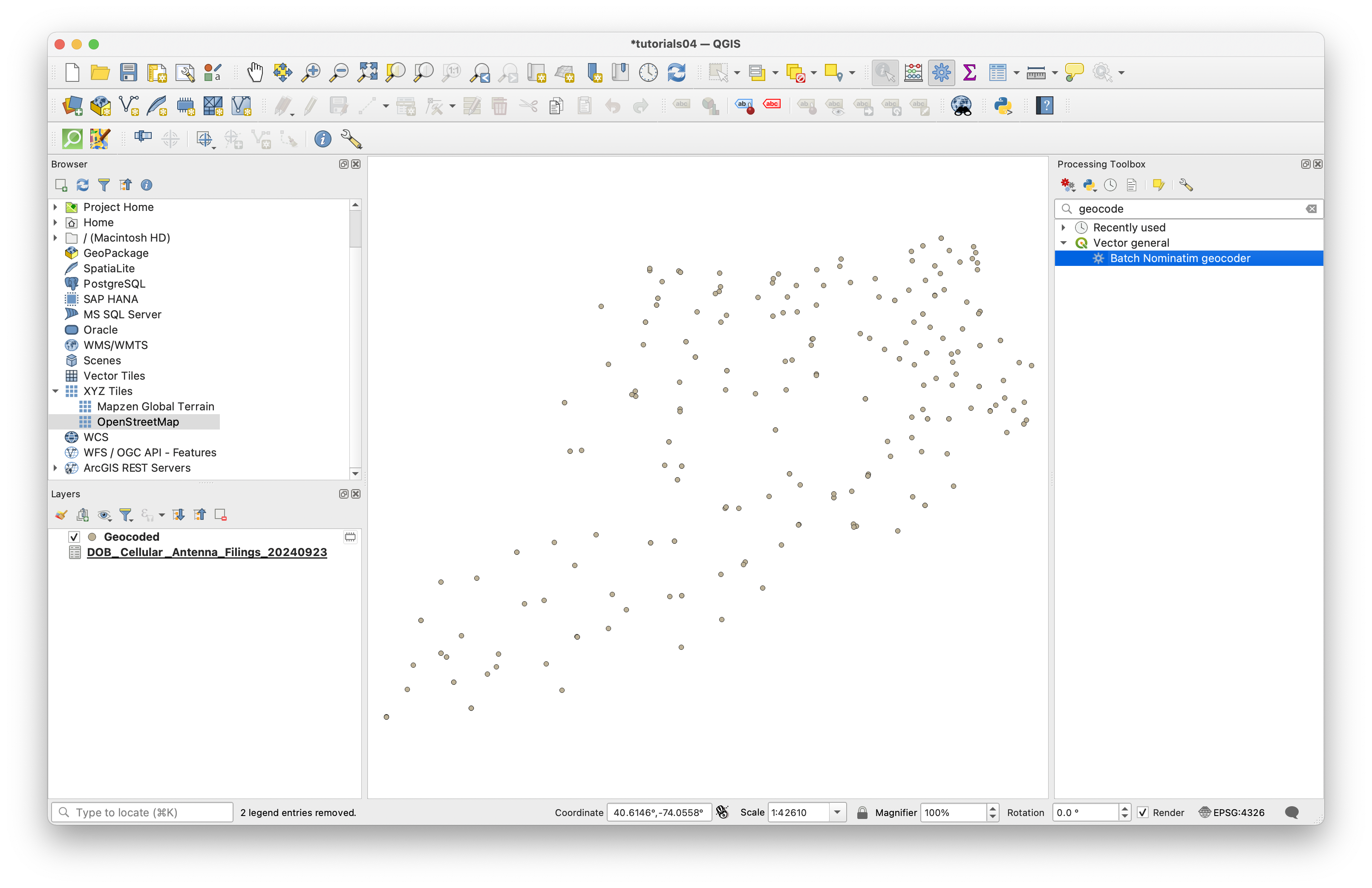
Once the tool finishes running you should see your geocoded points representing permit applications to install or maintain cellular antennas. The tool should also specify if any addresses were not found.
Add XYZ layer for context
To view your geocoded results in context you can add map tiles to your QGIS project by adding an XYZ Tile Layer. Map tiles are a type of spatial data that provide a raster representation of a location at varying levels of detail depending on the zoom level (think Google Maps).
In the Browser Panel, right-click XYZ Tiles and select New Connection. Give your new connection a name like "Google Satellite”, and paste the following URL into the URL field:
http://mt0.google.com/vt/lyrs=s&hl=en&x={x}&y={y}&z={z}
Drag the new XYZ Tiles layer you have just connected to into your map window to add it to your project.